How Do I Share Apple AirTag With Other Users?

0
Close-up of an Apple AirTag held between two fingers

An AirTag is linked to one Apple Account, but that does not mean only one person can help locate the item. Apple lets the owner share an AirTag or another compatible Find My item with as many as five other people. With the owner included, up to six people can view the item in Find My.

This is especially useful for shared keys, luggage, a family bicycle, camera equipment, or anything that regularly moves between trusted people. A borrower can see the item on a map, play a sound when it is nearby, and use Precision Finding on a supported iPhone. The owner keeps control and can remove access at any time.

Use the built-in sharing feature instead of simply lending the tracked item. A person carrying an unshared AirTag may receive an unknown-tracker warning, while an accepted sharing invitation tells Find My that the movement is expected. The result is a clearer experience for everyone without revealing the owner's Apple Account password.

1. Check the requirements before you share

Before sending an invitation, check the following requirements on both the owner's device and the borrower's device:

  • Two-factor authentication is turned on for the Apple Account.
  • Everyone is signed in to an Apple Account and is using iCloud.
  • iCloud Keychain is enabled for the owner and every borrower.
  • The devices run iOS 17, iPadOS 17, macOS 14, or a later compatible version.
  • The invited account is not a child account.

Sharing an AirTag gives another person location access; it does not transfer ownership or move the AirTag to a different Apple Account.

The AirTag should already appear in the owner's Items list before sharing begins. If it is still registered to someone else, that owner must remove it from their Apple Account before a new owner can set it up. Sharing cannot be used to bypass Activation Lock or ownership protection.

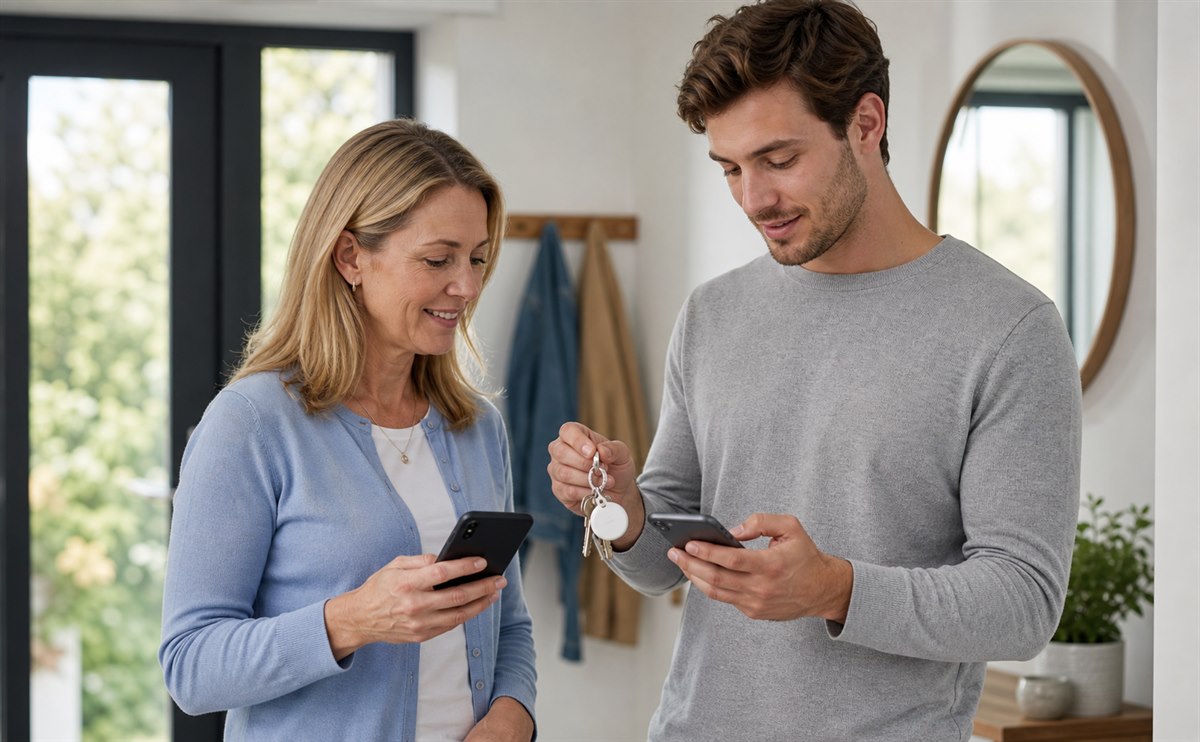
Two family members sharing access to a tracker attached to keys

People who accept the invitation can locate the shared item without receiving the unwanted-tracking alerts that normally appear when an unfamiliar AirTag moves with them. That makes official Find My sharing safer and less confusing than simply lending someone an item with an unshared tracker attached.

Only invite people you trust. Location access can reveal travel patterns and the places where a shared item is regularly kept. Review the sharing list whenever a trip, loan, or shared-use arrangement ends.

Borrowers can use the location tools associated with the item, but they cannot remove the AirTag from the owner's Apple Account or invite additional people on the owner's behalf. Keeping those permissions separate makes it practical to share access without giving up control.

2. Share the AirTag in Find My

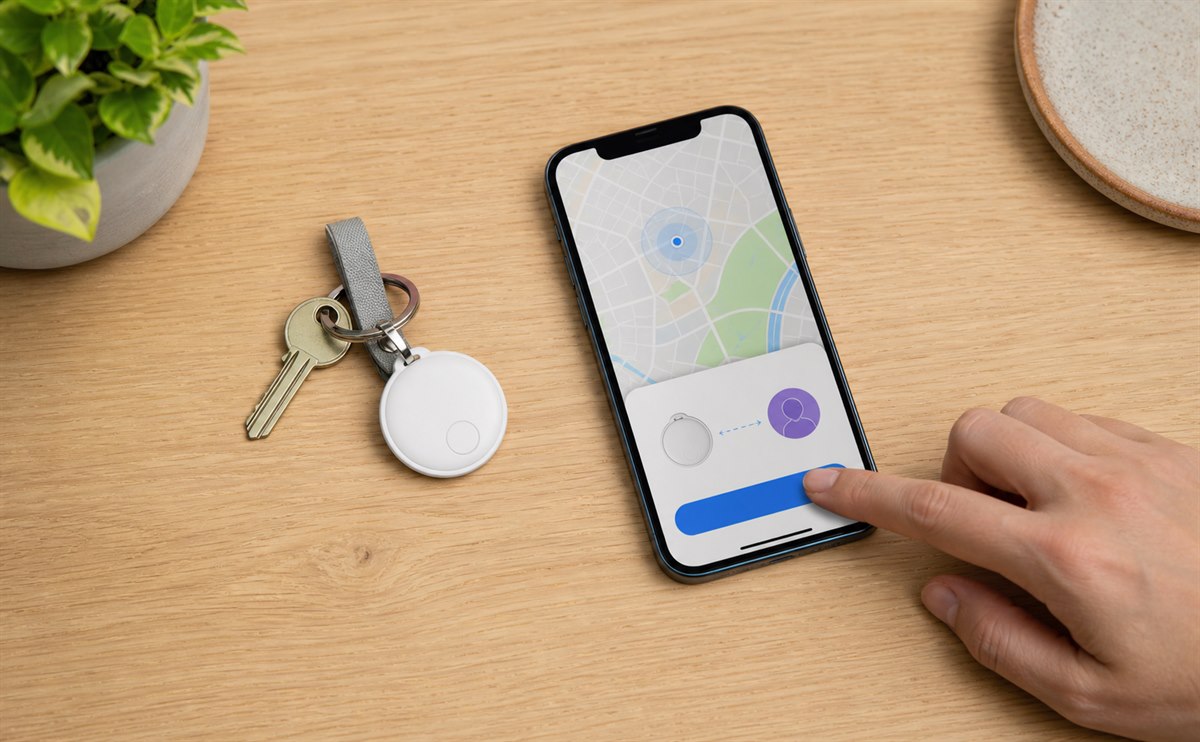
Smartphone beside keys and a round tracker during sharing setup

On the owner's iPhone, open Find My and follow these steps:

  1. Tap Items, then select the AirTag you want to share.
  2. Below Share This AirTag, tap Add Person.
  3. Enter the Apple Account contact information for the person you want to invite.
  4. Select the correct contact and account. Repeat the process if you want to add more borrowers.
  5. Tap Share in the top-right corner.

The item's main screen now shows the people you invited and the status of each invitation.

Send invitations individually and verify each Apple Account before tapping Share. This is important when a contact card contains more than one email address or phone number. The correct destination is the address associated with the recipient's active Apple Account.

The recipient receives a notification and can also find the invitation in Find My > Items. Tapping Add accepts the invitation and places the AirTag under the owner's shared items. Tapping Don't Add declines it.

If the invitation does not appear, confirm that it was sent to the same Apple Account currently signed in on the recipient's device. Also check the operating-system version, two-factor authentication, iCloud Keychain, and the network connection. Canceling a pending invitation and sending it again often resolves an invitation that has stalled.

The owner can monitor whether each invitation is pending or accepted from the AirTag's details screen. Wait for the recipient to accept before assuming the setup is complete, especially before handing over luggage, keys, or another tracked item for a trip.

3. Manage access and solve common problems

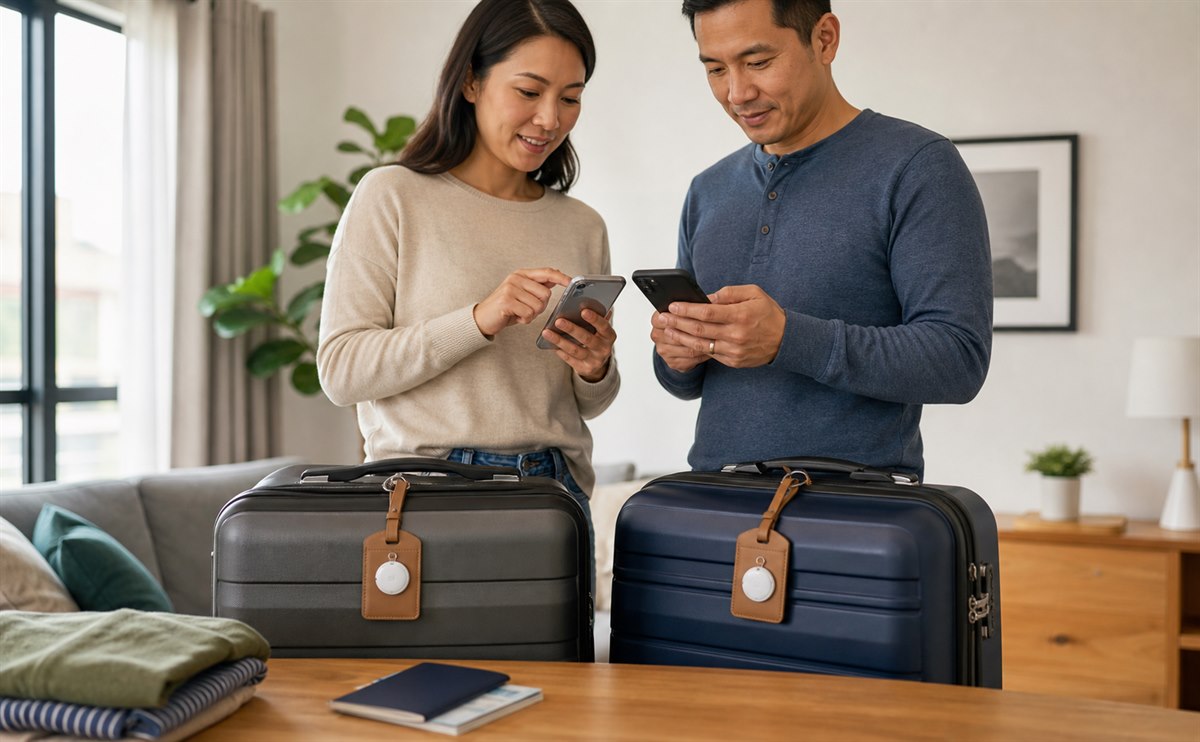
Two travelers managing shared tracker access for their luggage

To remove a borrower's access, open Find My, choose Items, select the shared AirTag, and tap the person's name. Tap Stop Sharing, then confirm. The AirTag disappears from that person's Items list and they can no longer view its location.

After sharing stops, the former borrower may again receive tracking notifications if the AirTag continues moving with them. Remove the tracker from the borrowed item or create a new sharing invitation if continued access is intentional.

Stopping access for one borrower does not affect the owner or the other accepted borrowers. This makes it easy to end a temporary arrangement after a holiday while keeping long-term access for household members.

Most AirTag sharing problems come from account settings rather than the tracker itself. Work through this checklist before resetting the AirTag:

  • Update every participating device to a compatible system version.
  • Verify that two-factor authentication and iCloud Keychain are enabled.
  • Make sure the invitation uses the recipient's active Apple Account.
  • Check whether the AirTag already has five borrowers.
  • Restart Find My, confirm internet access, and resend any pending invitation.

Also check the overall Find My item limit when a recipient manages many accessories. Shared items count toward the list, so an account that has reached its limit may need to remove an unused item before accepting another invitation. Reset the AirTag only when pairing or ownership is the actual problem; a reset does not repair an incorrect sharing account.

If an unexpected AirTag alert appears, do not ignore it. Follow Apple's on-screen safety instructions to identify the tracker. For the latest platform requirements, see Apple's official AirTag sharing guide.

Leave a Reply

Your email address will not be published. Required fields are marked *